Assignment 6: Clone Stamp Tool

Clone Stamp Tool

I want for you to practice with the clone tool, which is very useful.  Using this tool, you can copy a portion of an image and reapply it repeatedly to cover an unwanted portion of the image.

Hold down Alt to choose the area to clone, click.

In a new layer, clone the sample that you took and paint it over a part you want to cover.

Using the clone tool, you will open up the following pictures and modify them.

1.  Remove the cruise ship from this photo: Cruise Ship
2. Remove the bottom blue angel airplane and replace it with the sky & clouds background. Make sure that you use the correct background sample (use sky if the plane is in the sky, and clouds if it is surrounded by clouds). Blue Angels
3. Remove the ship on the right. There are people in the water also, and they should be replaced by water. Pirate Ship Save all three pictures as jpegs and post themto your blog under the title Assignment Seven.

Write about your experience with the Clone Stamp ToolWhat does it do? What could you use it for?
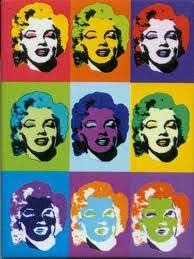
Project One: Pop Art

Repetition can be a good thing in art.  Now that you know how to move, manipulate and add different layers, as well as make selections with different tools you are ready for your first project.

1.Decide what image you want to repeat, a person, animal, object, plant…whatever.  This image should be a photograph, no cartoons or computer graphics.  Save the jpeg image and open it in photoshop.

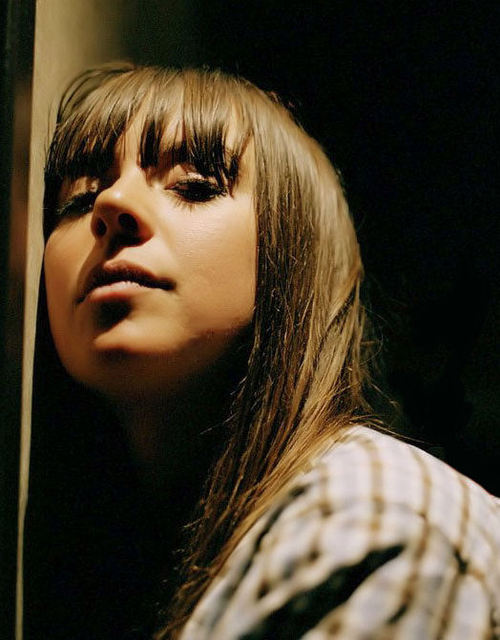
I chose Cat Power

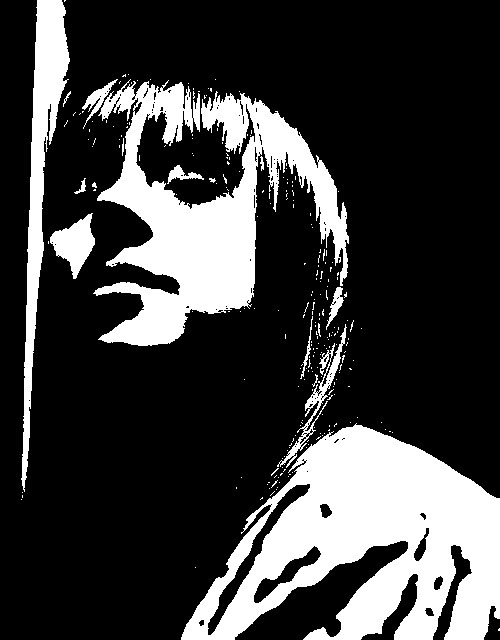
2. Adjust the threshold of your image.

3. Under Select–>Color Range, click on a white part of the image.  All of the white in the image should now be selected.  Delete it.  You should now see a checkered pattern where there was white.  This means it is transparentSelect all of the image and copy it.

4. Open a new blank document in photoshop.  You can pick the dimentions in inches.  Make them add up to around 10, ie 4 x 6 inches more or less.

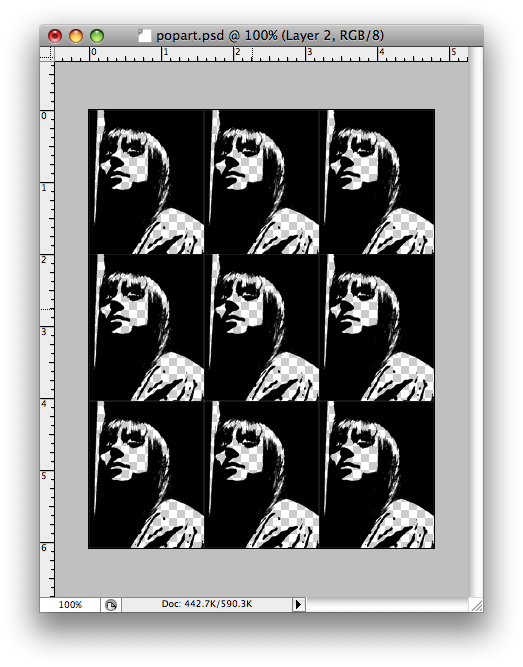
5. Paste your image into this new document.  Shrink it under Edit–>Transform–>Scale.  Copy it again and make at least 9 total.  Arrange them in a pleasing way, doesn’t have to be a grid like mine.

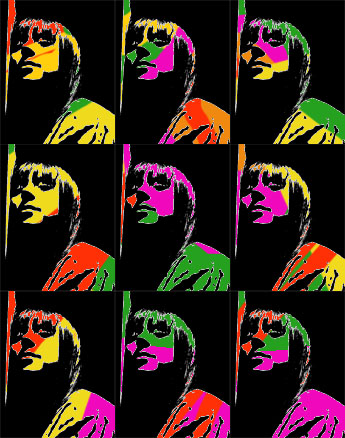
6. Add a new layer behind your pattern.  Using the paintbrush tool, paint some design with bright colors (at least 4).  Here is mine.

Here they are together.  Pop Art!

7. Flatten your image, save it as a JPEG and post it onto your blog under Project One: Pop art.  Write about your first experience actually making art with photoshop.  What was easy/difficult/annoying/awesome?  Do you like your product?

Assignment Five: Lasso Tools

1. Download this picture. Select the stork using the Regular Lasso tool.  Hit the Delete key to erase the stork.  Flatten the image under Layer–> Flatten Image.  Save the image as a jpeg.

2. Download this picture. Use the Polygon Lasso tool to select the house.  Go to Selection>Inverse Selection to select everything but the house.  Apply a Filter. Flatten the image under Layer–> Flatten Image.  Save the image as a jpeg.

3. Open a photo of your choice.  Use the Magnetic Lasso tool to select part of it, then change it with an Adjustment or a Filter. Flatten the image under Layer–> Flatten Image.  Save the image as a jpeg.

Post all three photos under Assignment Five.  Write about your experience using the Lasso Tools.  Were they easy to use or difficult?  Which seemed to have the most capabilities?

Assignment Four: Rectangular and Elliptical Marquee Tools

Open a jpeg picture of your choice in Photoshop.

  1. Make a Rectangular Marquee selection.  Click Select –> Inverse.  Change this selection under Image –> Adjust.
  2. Make an Elliptical Marquee selection, Change this selection under Image –> Adjust.

Flatten the image under Layer–> Flatten Image.  Save the image as a jpeg and post it to your blog under the title Assignment Four.

Write about your experience with the Rectangular and Elliptical Marquee Tools. What possibility do you see with these tools?

Assignment Three: Maneuvering different Layers

1. Download the file Layer_Practice.psd. Open Layer_Practice.psd. in Photoshop. Change the order of the layers on the document so you can see all the features of the South Park character.  Find a jpeg photo from the internet to use as a background for her.  Copy and paste it into the Photoshop document.  If it isn’t the right size, adjust it under Edit –>Transform–>Scale.  Make sure the background is the bottom layerFlatten the image under Layer–> Flatten Image.  Save the image as a jpeg and post it to your blog under the title Assignment Three.

2. Write about your experience maneuvering Layers in Photoshop.

Assignment 2: Using the Move Tool

1. Download the file move_practice.psd. Open the file in Photoshop.  Use the Move tool to assemble these pieces into the South Park character.  Once you have assembled the character, flatten the image under Layer–> Flatten Image.  Save the image as a jpeg and post it to your blog under the title Assignment Two.

2. Write about your experience using the Move Tool in Photoshop.

Assignment 1: Adjusting Your Photo

For the first assignment, you will adjust a photo in six ways.

You will begin by choosing a jpeg image and saving it to My Pictures.  Create a new folder called Assignment 1.  Save the original version of the photo in this folder under original.

You will then open it in Photoshop CS6 under File –> Open.

Under Image –> Adjust adjust the following:

Brightness/Contrast:

Name this photo brightness/contrast and save it in the Assignment 1 folder.  Close it and open the original photo again.  Adjust and save it under the following into the same folder:

Hue/Saturation:

Desaturate:

Gradient Map:

Invert:

Threshold:

Create a post on your blog to showcase and label your original photo, as well as each adjusted version. Title it Assignment One: Adjusting Your Photo. Include an introduction where you describe your first experience with Photoshop. What did you do? Was it easy or difficult? Which adjustment did you like the best? Remember to use correct English grammar and punctuation.